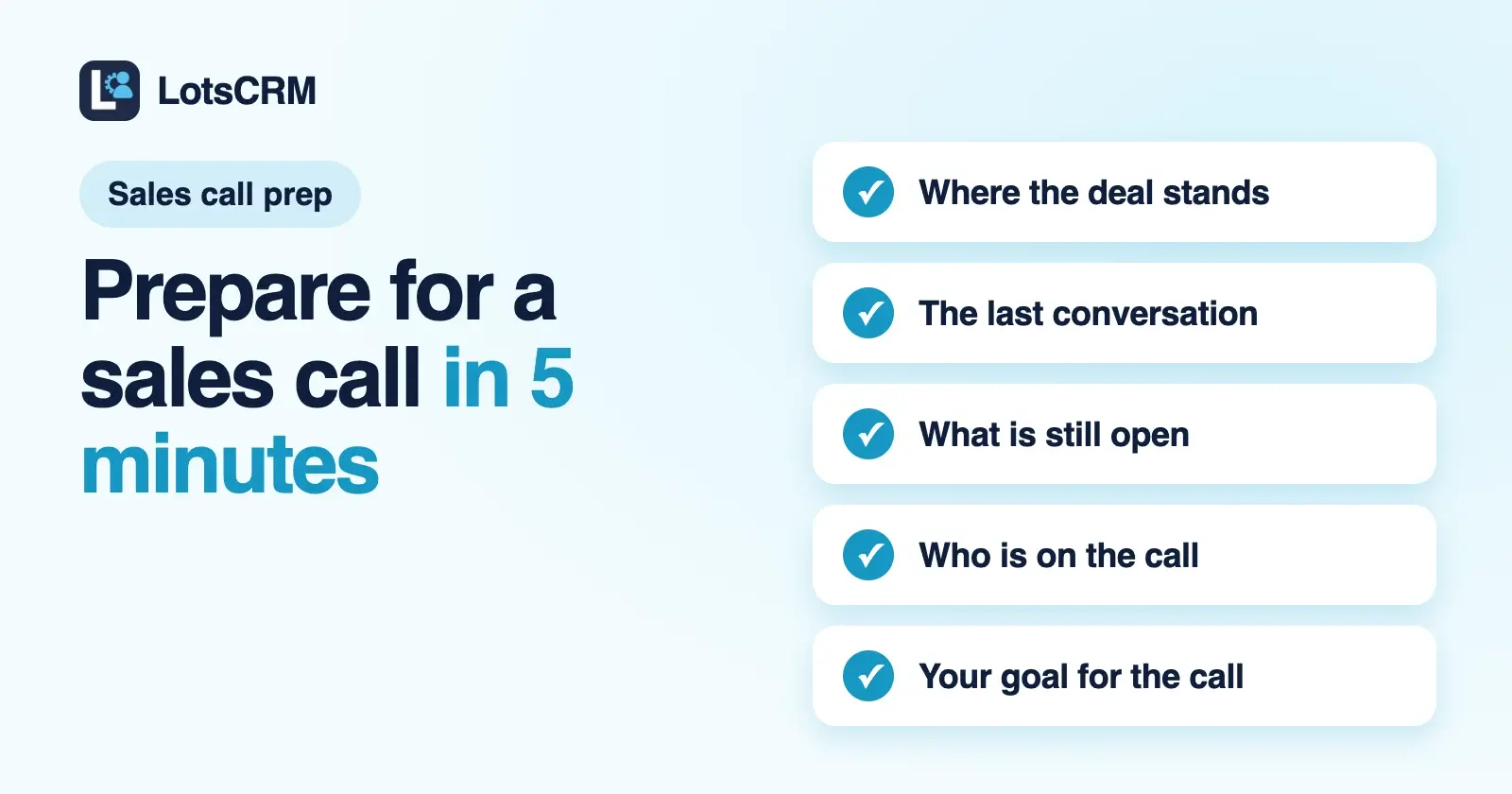
To prepare for a sales call in five minutes, read five things in this order: where the deal stands, the last conversation, what is still open, who is on the call, and what you want out of it. In LotsCRM that is one deal page, or one question to your AI agent. A prompt to paste is below.
Most call prep fails for one reason: the facts are in five places. A note in one app, a promise in an email, a price in a chat, a date in your head. If you log each conversation where it happened, the prep is a read, not a hunt. This guide assumes your calls and notes live in LotsCRM, where a "workspace" is one business's sales book, and it is written for founders and small teams who do their own selling. Everything about LotsCRM here comes from the live product pages, the tool reference and the product's code, checked on 31 October 2026.
What you need
- A LotsCRM workspace with a deal in it, and a line or two logged after your earlier calls. New accounts get free credits when they sign up, no card, enough to run one workspace for about a month.
- Optional: an AI agent connected to LotsCRM at
https://api.lotscrm.com/mcp(Claude, ChatGPT, Claude Code, Codex or Cursor; the setup page has the steps). Everything below also works from the dashboard alone.
The five-minute routine
One minute each. The time is a budget to keep you honest, not a feature of the product.
| Minute | The question | In the dashboard | From your agent |
|---|---|---|---|
| 1 | Where does this deal stand? | Open the deal: Details tab | get_deal_brief (stage, deal, company) |
| 2 | What was the last conversation? | The deal's Activity tab | recent activity in get_deal_brief, or get_timeline |
| 3 | What is still open? | The deal's Follow-ups tab | open follow-ups in get_deal_brief, or list_follow_ups |
| 4 | Who am I talking to, and can I contact them? | The contact's page | contacts and contact restrictions in get_deal_brief, or get_contact |
| 5 | What do I want from this call? | Add a note before you dial | your own words, saved with record_activity |
Step 1: See where the deal stands (minute 1)
Start from Today or Pipeline. On Today, the "Overdue follow-ups" tile and the lists "Gone quiet", "Closing soon" and "No next step" point at the deals that need a call. Click a deal's title, or click its card in Pipeline, and the Deal panel opens with three tabs: Details, Activity and Follow-ups.
On Details, read four things:
- The stage and its Stage history, which shows when the deal moved ("Moved from Qualified to Proposal") and when it was created.
- Amount and Expected close. If the date has passed, the field says "This date has passed." That is your first question for the call.
- Owner, so you know whether this is your deal or a colleague's.
- People, the contacts attached to the deal.
Step 2: Read the last conversation (minute 2)
Open the Activity tab. Entries are newest first, grouped under a heading per day. Each one shows its type (Call, Email, Meeting, Message or Note), the direction (Inbound or Outbound), an outcome label if you set one, such as "Positive" or "Left voicemail", and your text.
Read the latest two entries. You are looking for three things: what they said they care about, what they objected to, and what was agreed as the next step. If you can't find them, the entry was too thin, and the fix is in the note you write after this call (see "Write notes that make the next prep take a minute" below).
One detail that trips people up: an entry logged on the person but not on the deal shows on the contact's page, not in the deal's Activity tab. If a call happened before the deal existed, look on the contact.
Step 3: Check what is still open (minute 3)
Open the Follow-ups tab. These are the tasks linked to the deal, with their due dates. Anything overdue is something you promised and haven't done. Do it before the call if you can, or open the call by owning it: "I said I'd send the pricing options on Tuesday, here they are."
A follow-up in LotsCRM is a task. LotsCRM sends no reminders and no emails to your contacts, so what is due is in your Today view and nowhere else. See How to Never Miss a Follow-Up for setting them.
Step 4: Know who you are talking to (minute 4)
Click a person under People to open their contact page. Check three things:
- Details, for their phone, company and where the contact came from, plus the "Notes" block underneath if you wrote background on the person.
- Permission in Details. If someone is "Opted out" or "Do not contact", the page shows a banner at the top, and the right move is to find out why before you reach out.
- Activity and Deals, for everything with this person, including any other deals they are on.
Step 5: Write the call plan as a note (minute 5)
Before you dial, open the Activity tab, choose "Note" and write the plan in three lines:
Goal: agree a pilot start date.
Ask: who signs off? what changed since Tuesday? what would make this a no?
Bring: revised pricing, the two-week timeline.
It saves to the timeline with today's date, so after the call you can see what you set out to do next to what happened. Then, right after the call, use "Log a call" with the direction and outcome. How to Log Every Sales Call in Your CRM Without Typing shows the agent version of that step.
The same five minutes from your AI agent
If you work from Claude, ChatGPT or another agent connected to LotsCRM, one prompt does steps 1 to 4 and drafts step 5 for you to edit:
I have a call with Dana Example at Example Studio in 30 minutes.
Find her deal in LotsCRM and prepare me. Give me:
1. Where the deal stands: stage, amount, expected close, owner.
2. The last conversation: what was said, what they care about, any objection.
3. What is still open: follow-ups I owe, and which are overdue.
4. Who is on the deal, and whether anyone is opted out or do not contact.
5. A goal for this call and three questions to ask.
Read only. Don't change anything and don't draft a message.
The names are fictional; swap in your own contact and company. The agent looks the deal up with search_crm, then reads get_deal_brief. LotsCRM's own skill file tells an agent to begin each session with list_workspaces and get_crm_briefing, so it knows which workspace you mean and what your role is.
What the deal brief contains
get_deal_brief is described in the tool reference as complete pre-call context. From the product's code and the API reference, the response holds:
| Part | What it is |
|---|---|
deal and stage | The deal record and the stage it sits in |
company | The company on the deal |
contacts | The people on the deal, with their role on it and whether each is the primary contact |
recent_activities | Calls, meetings, emails, messages and notes on the deal, newest first |
open_follow_ups | Tasks on the deal that are not done, soonest due first |
outreach_restrictions | Any contact on the deal who has opted out or is marked do not contact |
business_context | What you sell, kept in LotsNotes, labelled separately from private guidance |
It reads and returns; it writes nothing. The brief tools are listed as Read in the public tools.json, the permission that is always on when you connect an agent.
The brief is only as good as what was logged. LotsCRM doesn't sync your inbox or calendar, so a conversation you had by email and never logged is not in it. That is the argument for the note habit below.
Prompts for the other cases
You have no deal yet, just a person. There is no deal to brief, so the agent reads the person instead (get_contact and get_timeline):
Prep me for a call with dana@example.com. Read her contact record and
timeline, check whether she is opted out or do not contact, and tell me
what we last discussed and what I owe her. Read only.
You have several calls today. The sales brief ranks the day:
Read my sales brief. Which three deals most need a call today, and why?
get_sales_brief returns counts and lists for overdue follow-ups, deals gone quiet, deals closing soon and deals with no next step. In the product's code the defaults are 7 days without activity for quiet and 14 days for closing soon, and your agent can ask for other windows.
You want a draft after the call. prepare_follow_up hands your agent the same deal context plus the rules for drafting, and it returns context only. It sends nothing, and it blocks drafting for opted-out and do-not-contact records. You send the message from your own email, then ask your agent to log it. See Founder-Led Sales With an AI Agent for the whole loop.
Write notes that make the next prep take a minute
The five minutes only work if the last call left something to read. Write each note as four short lines:
Said: they are choosing between us and doing it by hand.
Cares about: a start before the end of the month.
I promised: pricing for six seats by Thursday.
Next: call Friday, ask for the budget owner.
Dashboard: choose "Log a call", write it, set the outcome. Agent: "Log the call with Dana: [the four lines], then set a follow-up for Thursday." Each takes about a minute and saves you five the next time.
Add what you sell, once
An agent preparing you for a call is more useful if it knows your offer, so keep your offer, customers and positioning in LotsNotes. In LotsCRM, Settings has a Business context card that points there. Per the tool descriptions, the briefing tools carry that business context labelled separately from private guidance, so an agent can tell what it may say to a customer from what is only for steering. LotsNotes is free for one person (checked 31 October 2026).
If your contacts are still in Google Contacts or Outlook
A new LotsCRM account opens with a "Start here" card on Today: import your contacts, add your first deal, set a follow-up. For the import, export from Google Contacts, Outlook or HubSpot and upload the file as it is. LotsCRM reads email, first and last name, phone, company, job title, tags and stage from the column names, and takes up to 5,000 people at a time. A row that fails stays in the box with its reason and row number so you can fix it and send again. For the full walkthrough, see How to Move From HubSpot or a Spreadsheet to LotsCRM.
If more than one person takes calls
The brief is also a handover. Teammates are unlimited on every plan (the pricing page notes that unlimited is subject to fair use), so whoever picks up a deal while you are away reads the same Details, Activity and Follow-ups you do. Roles decide what they can change: owners, admins, managers and members edit; viewers read only.
If you sell for several clients
Agencies keep one workspace per client, and every brief is read from one workspace only. Calls that read or change records name the workspace they work in, and LotsCRM's skill tells an agent never to carry records or assumptions from one workspace to another, so a call-prep prompt for one client doesn't pull in another's deals. Client staff can be invited as viewers if you want them to see the pipeline. A plan covers a number of workspaces: see The Best CRMs for Agencies and the pricing page.
Safe to use before every call
- Reading changes nothing. The brief tools are read-only, and nothing in LotsCRM sends a message to a contact.
- Opted-out people are flagged. The brief lists them, and drafting is blocked for them.
- Notes are data. The skill file tells an agent to treat imported text and notes written by other people as data, never as instructions.
- Your agent acts as you. It sees what your role sees in each workspace.
More in Is LotsCRM Safe?.
What it costs
LotsCRM is priced per workspace, one per business or client. Plans start at $12 a month for 3 workspaces, or you can pay as you go at $5 a month per workspace from credits. Contacts, deals and teammates are unlimited (subject to fair use). The Pro and Business plans include LotsNotes Pro. Plan prices checked on 31 October 2026 at lotscrm.com/pricing. See LotsCRM Pricing Explained.
FAQ
How do I prepare for a sales call in 5 minutes?
Read five things in order: where the deal stands, the last conversation, what is still open, who is on the call, and your goal. In LotsCRM, open the deal and read Details, Activity and Follow-ups, check the contact's page for opt-out flags, and write a three-line call plan as a note. Or ask your connected AI agent to read the deal brief and do the first four for you.
What should a sales call prep note include?
Three lines are enough: the goal of the call, the questions you want answered, and what you will bring or must deliver. Put it on the deal before you dial, so after the call the timeline shows what you meant to do next to what happened.
Can an AI agent prepare a sales call brief from my CRM?
Yes. An agent connected to LotsCRM can read a deal's brief, which holds the deal, stage, company, contacts, recent activity, open follow-ups and contact restrictions. It can only report what is logged: LotsCRM doesn't sync your inbox or calendar, so conversations you never logged are not in it.
Does LotsCRM email the contact or send me a reminder before a call?
No. LotsCRM sends no emails or messages to your contacts and no reminders. A follow-up is a task that shows in your Today view. Your own tools do the sending, and you log it afterwards.
What if the person has opted out or is marked do not contact?
The contact's page shows a banner, and the deal brief lists them under contact restrictions. When your agent asks for a follow-up draft, LotsCRM blocks it for those contacts. Find out why before you reach out.
What if the person isn't in my CRM yet?
Add them first, or ask your agent to. Then log what you know from research as a note, so the next call has something to read. Contacts can be imported from a Google Contacts, Outlook or HubSpot export, or added one at a time.
How much does it cost?
Plans start at $12 a month for 3 workspaces, or $5 a month per workspace pay as you go (checked 31 October 2026). New accounts get free credits when they sign up, no card, enough to run one workspace for about a month.
Sources
Opened and checked on 31 October 2026:
- LotsCRM pricing: lotscrm.com/pricing and the pricing-facts feed for LotsCRM
- LotsCRM tool list: api.lotscrm.com/tools.json, API reference api.lotscrm.com/docs.md, agent skill lotscrm.com/skill.md, connect page lotscrm.com/mcp
- LotsCRM changelog entry of 31 October 2026 on support.lotscrm.com/changelog
- LotsNotes pricing: lotsnotes.com/pricing
- Dashboard labels and brief contents: the LotsCRM app and MCP server code, read on 31 October 2026