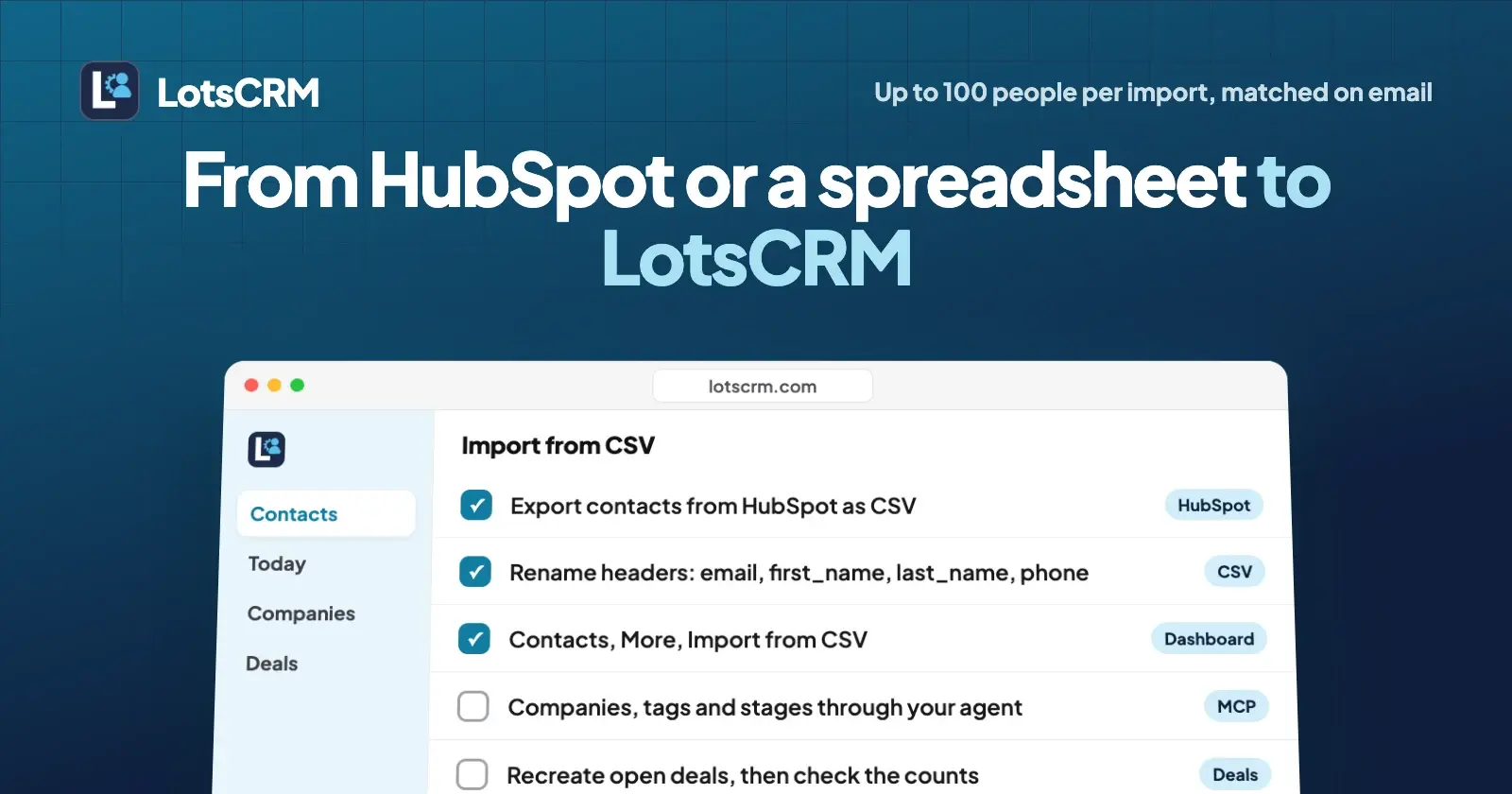
To move from HubSpot or a spreadsheet to LotsCRM, export your contacts as a CSV file, then in LotsCRM open Contacts, choose More, then Import from CSV, and import up to 100 people at a time. Companies, job titles, tags and stages come across in the same import. For notes, custom fields and open deals, hand the CSV to ChatGPT or Claude and let it import through the LotsCRM MCP server.
That's the whole move. Below are the exact steps for both starting points, what each route carries across, how to bring open deals, and how to check nothing went missing. HubSpot's export steps come from HubSpot's own help page, checked on 22 October 2026. The LotsCRM steps come from our API docs, tool list and the dashboard itself.
What moves, and how
LotsCRM has two ways in: the CSV import in the dashboard, and your AI agent importing the rows for you. There are no direct HubSpot or Salesforce connectors; CSV is the bridge, and your agent does the mapping.
| What you're moving | Dashboard CSV import | Your agent (MCP or REST) |
|---|---|---|
| Email, first name, last name, phone | Yes | Yes |
| Company (linked or created by name) | Yes | Yes, company_name |
| Job title | Yes | Yes |
| Notes | No | Yes |
| Tags (event, source, segment) | Yes, separated by commas or semicolons | Yes, up to 20 per person |
| Lifecycle stage | Yes, HubSpot stages are mapped | Yes |
| Lead status | No; new leads start as "Not contacted" | Yes |
| Custom fields (for example the old HubSpot record ID) | No | Yes |
| Open deals | No | Yes, one create_deal per deal |
| Past emails, calls and meetings | No | No; keep your export, or summarise key history into notes |
Both routes use the same import underneath: up to 100 people per batch, matched on email inside the workspace, so importing the same person twice updates them instead of creating a duplicate.
Step 1: Export your contacts
From HubSpot
HubSpot's Export your records article (last updated 2 April 2026, checked on 22 October 2026) gives these steps. You need Export permission in HubSpot.
- Go to CRM > Contacts. If your account shows More in the navigation, click More first, then CRM > Contacts.
- Open the All contacts view to export everyone, or a saved view to export only that segment.
- In the top right of the table, click Export.
- Pick CSV in the File format dropdown. Name the export if you like, and choose the language of the column headers.
- Optional: click Customize to choose which properties go in. By default you get the properties and associations in your view; you can switch to all properties.
- Click Export. HubSpot emails you a download link, which expires after 30 days. A CSV larger than 2 MB arrives zipped.
Do the same under CRM > Companies and CRM > Deals if you want those files for steps 4 and 5. HubSpot's record export carries property values and associations, not the activity timeline: its help page points to separate exports for calls and notes.
From a spreadsheet
Save the sheet as CSV. In Google Sheets: File > Download > Comma-separated values (.csv). In Excel: File > Save As, then CSV UTF-8 (Comma delimited). One person per row, one column per field.
Step 2: Prepare the file for the dashboard import
The dashboard import reads the column names in your first row, ignoring capital letters, spaces and underscores. It understands the names HubSpot and most spreadsheets use: Email or Email Address, First Name, Last Name (or a single Name column, which it splits), Phone Number, Company Name, Job Title, Tags and Lifecycle Stage.
- Keep the headers as they are. A HubSpot export imports as it is. If you exported HubSpot in another language, rename the headers to the English names above, because LotsCRM matches the English names.
- No header row? Put the columns in this order: email, first name, last name, phone. With a header row, the order does not matter.
- Keep each import to 100 rows and the file under 1 MB. For 450 contacts, that's five files, or five pastes.
- Give everyone an email where you can. Email is how LotsCRM recognises a person, so it's what stops a second import from making duplicates.
Columns it does not recognise are ignored, and the preview lists them under "Not imported". Notes, custom fields and open deals still need your agent (step 4). Header rows are never imported as contacts, and an empty cell never blanks a field on a contact you already have.
Step 3: Import in the LotsCRM dashboard
- Sign in at lotscrm.com and open the workspace you're moving into. New accounts get 5,000 free credits, valid 90 days, no card.
- Go to Contacts, click More, then Import from CSV. (On an empty contact list there's an Import CSV button, and the same import sits under Settings > Import and export.)
- Click Choose a file and pick your CSV, or paste the rows straight into the box. LotsCRM shows how many rows are ready.
- Click Import.
If some rows fail, they stay in the box with the reason next to each (for example "Row 3: ..."), and the rows that worked are already in. Fix those rows and click Import again. Failed rows come back in the box with their column names, so you can fix them and import again without losing company, tags or stage. Sending the same rows again after a dropped connection doesn't add anyone twice. You need edit access to import; viewers can't.
Every new contact you import starts with the lead status "Not contacted", so you can filter for the people nobody has spoken to yet.
Step 4: Or let your agent import it, with notes, custom fields and owners
The dashboard import covers contacts, companies, tags and stages. When you also want notes, custom fields such as the old HubSpot record ID, or owners, your agent can bring more across. LotsCRM works with the AI agent you already use: connect ChatGPT, Claude, Claude Code, Codex or Cursor to https://api.lotscrm.com/mcp (setup for each at lotscrm.com/mcp), attach the CSV or point the agent at the file, and say:
Read https://lotscrm.com/skill.md. Import the attached HubSpot contacts export into my LotsCRM workspace "My business". Map email, first name, last name, phone, job title and company name. Tag everyone "from-hubspot". Map HubSpot's lifecycle stage to LotsCRM's stages (lead, prospect, customer and so on) and put the HubSpot record ID in a custom field called hubspot_id. Send them in batches of 100, show me the mapping and the first five rows before you start, and list any rows that fail.
Behind that, the agent calls bulk_upsert_prospects, which takes 1 to 100 people per call. Each row can carry:
company_name, which links the person to that company in the workspace and creates the company if it doesn't exist yet;job_title,phone,notes,sourceandsource_url;tags, up to 20 per person;lifecycle_stage(lead, prospect, user, customer, partner, inactive) andlead_status(new, attempted, connected, qualified, unqualified, nurturing);custom_fields, which merge into what's already on the record.
Each batch carries an idempotency key, so a retried batch returns the first result instead of importing twice, and row errors come back for the agent to report. One thing to know before you re-run an import: when a row matches someone already in LotsCRM, the tags in that row replace their existing tags, so include every tag you want them to keep.
If your agent runs in the cloud rather than in a chat app, the same import is POST /api/v1/lotscrm/contacts/bulk in the REST API, with an API key from lotstech.com/api.
Step 5: Bring your open deals
There's no deal import in the dashboard, and you probably don't want every closed deal from the last five years anyway. Bring the open ones:
Here's my HubSpot deals export. In LotsCRM, list my pipelines. If the stages don't match HubSpot's, create a pipeline with these stages: Discovery, Proposal, Negotiation, Won, Lost. Then create a deal for every open row with its name, amount, close date and contact, in the matching stage. Skip closed deals. Show me the plan first.
The agent uses list_pipelines, create_pipeline if you need your own stages (a new workspace comes with a default six-stage sales pipeline), and create_deal for each deal, linked to the contacts it just imported. Creating pipelines needs the owner or admin role. You can also add deals by hand in the dashboard; for a handful, that's quicker.
For history you care about, such as the last call before a proposal, ask the agent to add a short summary to that contact's notes, or log it with record_activity. Keep your HubSpot export files as the archive of everything else.
Step 6: Check nothing went missing
- Count. Ask your agent "How many contacts tagged from-hubspot are in the workspace?" (it uses
list_contactswith the tag filter), or check the count at the top of the Contacts page against the rows in your file. - Spot-check. Open five contacts you know well and check the company, stage and notes.
- Export back. On Contacts, choose More, then Export all, and compare the file with your original. Companies export from the Companies page.
Only cancel your old tool once the counts match.
What it costs once you've moved
LotsCRM charges per workspace, never per person. Contacts, deals, pipelines and teammates are unlimited, so the size of your HubSpot export doesn't change the price.
| Option | Price | Workspaces |
|---|---|---|
| Pay as you go | $5 per workspace a month, from credits | As many as you fund |
| Starter | $12 a month or $120 a year | 3 |
| Pro | $29 a month or $290 a year | 10 |
| Business | $79 a month or $790 a year | 30 |
Pro and Business include LotsNotes Pro. If a workspace ever goes unfunded, it turns read-only: you can still read and export everything, and nothing is deleted. Full details on the pricing page and in LotsCRM Pricing Explained. If you're still deciding whether to leave HubSpot, HubSpot Alternatives for Small Teams compares the options, and Is LotsCRM Safe? covers what your agent can and can't do once it's connected. If you run a consulting practice, The Best CRMs for Consultants compares eight options on price, follow-ups and project tracking.
Common questions
Can LotsCRM import directly from HubSpot?
No. There's no direct HubSpot connector. You export a CSV from HubSpot and import it in the LotsCRM dashboard, which reads HubSpot's column names, or give the CSV to ChatGPT or Claude and it imports the rows through the LotsCRM MCP server, including notes and custom fields.
How many contacts can I import at once?
Up to 100 per import, in the dashboard and through the agent. For a bigger list, split the file into chunks of 100, or ask your agent to send it in batches of 100. Contacts are unlimited on every plan.
What columns does the LotsCRM CSV import accept?
The dashboard import reads the column names in your first row: email, first name, last name (or one name column), phone, company, job title, tags and lifecycle stage, ignoring case and spacing. Your agent can also map notes, lead status and custom fields.
Will importing the same file twice create duplicates?
No. LotsCRM matches people by email within the workspace, so a second import updates the existing contact. A retried batch with the same rows also returns the first result instead of importing again.
Can I import deals, emails and call history?
Deals come across through your agent, one deal at a time from your deals export; there's no deal CSV import. Past emails, calls and meetings don't import. Keep your HubSpot export as the archive, and have your agent add short summaries to notes for the conversations you still need.
Do I have to cancel HubSpot first?
No. Import into LotsCRM, check the counts and a few records, then cancel. HubSpot's export download links expire after 30 days, so save the files somewhere you keep.